Windows 11 | 65x HP Z2 Tower G1i | UPDATE -
-
This post is deleted! -
Update:
I uploaded the golden image to the FOG server via the NFS share using Clonezilla and then downloaded it again on the client using Clonezilla. Errors occurred here as well.
What’s interesting is, that I couldn’t detect any errors on the hard drive using SMART. Maybe Network Card, … ?
So I installed FOG from scratch on different hardware (latest Debian, latest FOG version — typical mix of new/old hardware).
Unfortunately, I still can’t clone reliably with FOG. The nvme0 and nvme1 drives get swapped, and I can’t figure out why. BIOS settings seem to be changed by Windows — overall it’s quite a mess.
Cloning with Clonezilla (one device at a time) is of course much less convenient, but there I can explicitly distinguish (see the picture) between the drives: one is 1 TB, the other 256 GB. The different brand names can also be used as a criterion.
Interestingly, with 25 computers, the order was not swapped even once. It was always exactly as installed in the device:
nvme0 = 1 TB
nvme1 = 256 GB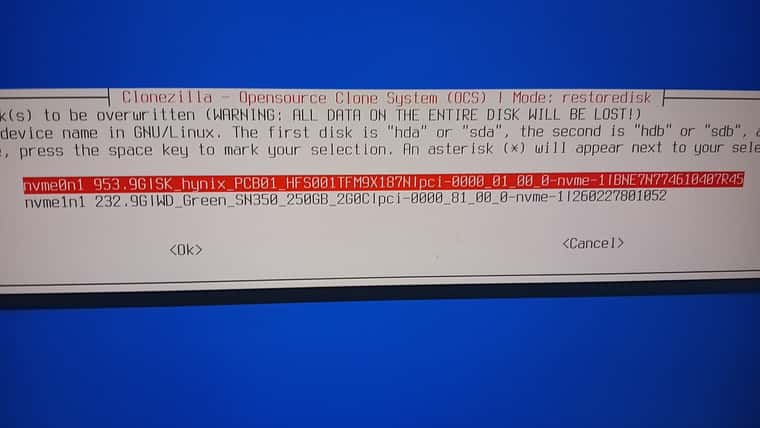
-
@kratkale You can do the same thing with “Hard Drive” paramater of the Host in question.
If you know the wwn, serial, or block size of the disk you intend, it should figure out which drive you intend. Of course this is specific to the machine you’re attempting ot image, but this same functionality is possible in FOG.
-
@Tom-Elliott said in Windows 11 | 65x HP Z2 Tower G1i | UPDATE -:
@kratkale You can do the same thing with “Hard Drive” paramater of the Host in question.
If you know the wwn, serial, or block size of the disk you intend, it should figure out which drive you intend. Of course this is specific to the machine you’re attempting ot image, but this same functionality is possible in FOG.
Hi,
Thank you for you answer. I did now the job with Clonzilla - it worked fine. All PC’s are running.
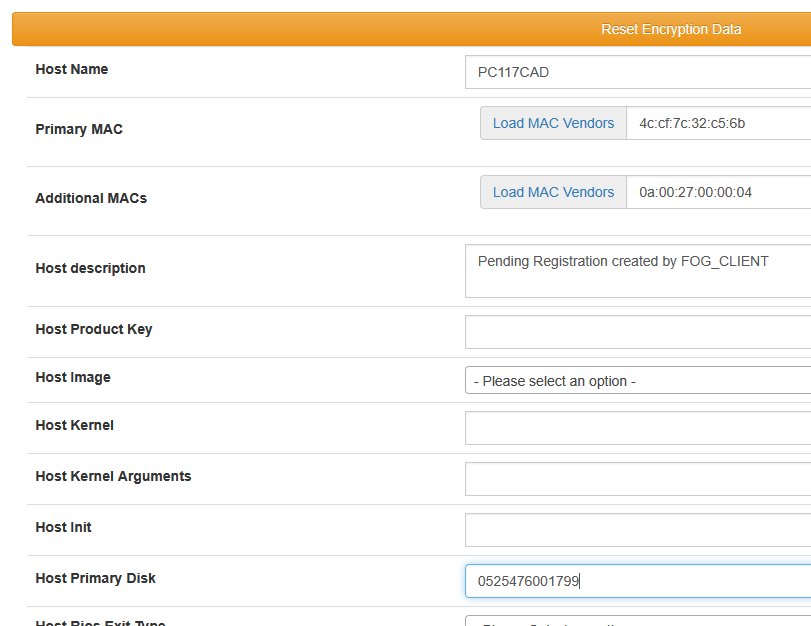
One stumbling block was the FOG client. I didn’t realize I had to click the “Reset Encryption Data” button (the yellow bar at the very top of the FOG Host Management website ) - maybe this information will help someone else.
Now that the PCs are up and running, I have the energy to focus on getting FOG to take over all the tasks again. What I’ve noticed is that in Host | Inventory, only one hard drive is listed—and that’s the nvme2.
For configuration It would be nice if you could select the correct hard drive from a drop-down menu in Host | Host Primary Disk.Unfortunately, I haven’t quite figured out what to enter where: Here’s the data I could easily retrieve under Windows using a snap-in
-
=== Festplatten-Report fuer PC117CAD ===
— Festplatte —
Modell : PSEMN01TA87NC0
Seriennummer : 0000_0000_0000_0000_6479_A7B4_1F00_1204.
Groesse (GB) : 931,51
Medientyp : Fixed hard disk media
Interface : SCSI
Partitions : 2
— Partition —
Name : Datenträgernr. 0, Partitionsnr. 0
Typ : GPT: System
Bootable : True
Groesse (GB) : 0,10
— Partition —
Name : Datenträgernr. 0, Partitionsnr. 1
Typ : GPT: Basic Data
Bootable : False
Groesse (GB) : 931,40
— Logisches Laufwerk —
Laufwerksbuchstabe :
Volumename :
Dateisystem : NTFS
Groesse (GB) : 931,40
Frei (GB) : 844,18— Festplatte —
Modell : WD Green SN350 250GB 2G0C
Seriennummer : E823_8FA6_BF53_0001_001B_448B_4FDE_90F3.
Groesse (GB) : 232,88
Medientyp : Fixed hard disk media
Interface : SCSI
Partitions : 1
— Partition —
Name : Datenträgernr. 1, Partitionsnr. 0
Typ : GPT: Basic Data
Bootable : False
Groesse (GB) : 232,87
– Logisches Laufwerk –
Laufwerksbuchstabe :
Volumename : Daten
Dateisystem : NTFS
Groesse (GB) : 232,87
Frei (GB) : 232,77=== Ende des Reports ===
-
Please check memory of computer with memtest86+ 8.0
-
@sgennadi
I don’t have any hardware issues anymore—now I just need to make sure the cloning process is happening on the right NVMe drive. One NVMe drive contains the students’ data, and the other contains the operating system. If I can’t get this to work, I’ll have to swap out the Fog for some Microsoft stuff
-
@kratkale Like I said, if you know which nvme drive has the student data, and which is expected to be the OS:
On a registered host you can explicitly call out which drive using “serial, wwn” or otherwise.

You type in the wwn or serial number:
lsblk -pdno PATH,SERIAL,WWN,SIZE --nvmerespective of your device. (I lowercase them for simplicity.)Find your “primary” drive, and put in either one of those details in the form field and give it a shot. It should work and will leave the other drive completely alone so long as the type of image you’re using is “single disk” style.
-
is this now correct?
-
@kratkale That seems correct to me, yes. If this is a drive you’re testing proof of, I’d first just replace the actual second disk with something you don’t care to lose to test.
What I don’t want is you to just trust me at my word for the sake of things and lose actual data.
Another method you can use in case this isn’t sufficient, it’s a little more involved I suppose is to simply unplug the disk you don’t want being written, but that’s a part of the problem. At a glance you of the hardware you have no idea what drive is which. That’s the basic problem you’re running into now:
nvme0n1 this time might be the right disk, but next boot nvme0n1 might be the student disk. It’s all dependent on who starts up and responds first.
-
@kratkale Here’s a big problem: updating a group overrode the “Host Primary Disk” entry on all the PCs in the group—I had already entered the information for all 65 PCs. But I had backed up the host table beforehand—can I just restore it?
It would be necessary to be able to block host entries! -
@kratkale
Okay—I have another theory about the problem: after analyzing the NVMe serial numbers, I found the following number ranges: 0525476001xxx and BMEAN00061090Axxx—where x can be a hexadecimal number and varies. The PC’s with NVMe drives from the 05… range have trouble recognizing the first NVMe drive. Those with BM… did not have this problem. The serial numbers of the data disks are all 260227800xxx and are all one digit shorter than the numbers of the system disks.When cloning with Clonzilla, I didn’t have a problem with any system (65 PCs); all hard drives were correctly recognized in the order they are installed in the PC.
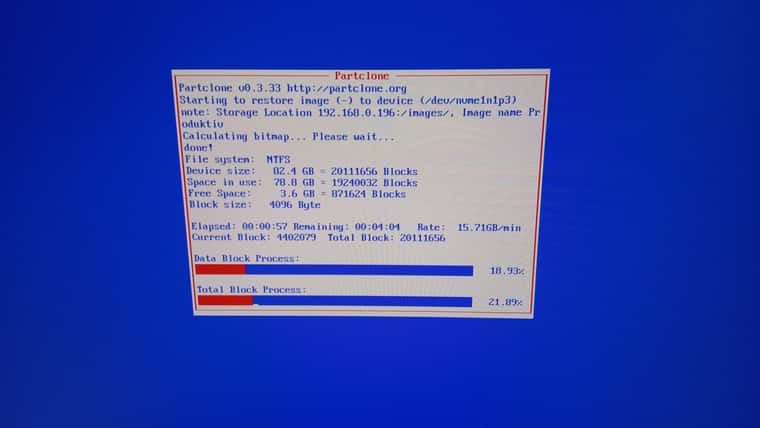
Could it be that cloning with FOG always clones to the smaller serial number? … and when cloning, it also says that it’s cloning to nvme1, which is correct.
-
@kratkale I didn’t know you were updating the serial of a group of devices, you should not do that. Groups are just mass updating hosts with the information you provide for the Host base settings (snapins, primary drive, kernel, etc…).
-
@kratkale I don’t know what you are asking.
what’s nvme1n1 this boot cycle, might very well be nvme0n1 next cycle.
While you may see some level on consistency, SERIAL based devices (PCI, SATA, USB, etc…)
All load their identifiers (/dev/sda, /dev/nvme0n1, etc…) on a first come first serve basis.
What’s /dev/sda1 this boot may be /dev/sdb1 next boot and so on. There’s 0 method to guarantee they will always get the same label which is why many Linux machines use a UUID for the fstab file now instead of their path names (which was used for a long period of time).
FOG just returns the list of devices lsblk sees in the order lsblk sees it.
-
@kratkale OK—I’ll try to explain it more clearly:
FOGFOG clones (as you can see in the image) to nvme1. No host device was specified here. So FOG correctly identified the NVMe order and didn’t clone to nvme0, but to the wrong nvme1.
I noticed that this happens with all devices where the NVMe serial number starts with a number. For those where the NVMe serial number starts with a letter, it clones correctly to nvme0. The NVMe on the data drive is a different brand and only has numbers as serial numbers.Clonzilla
Clonzilla always gave me a choice between nvme0 and nvme1 when cloning. Here, the NVMe installed in the first slot in the PC was always nvme0, and the one installed in the second slot was always nvme1—so Clonzilla always correctly identifies which is the data drive and which is the system drive. The system drive is always installed in the first slot, and the data drive is always in the second.
-
@Tom-Elliott
Of course, if I change the image, for example, I have to use groups as well. Otherwise, I’d have to change the image on every PC by hand.
In that case, I think it would be helpful if you could protect the “Host Primary Disk” entry on the host so that this information isn’t lost. -
@kratkale I’m unsure I understand?
If the Group Primary Disk is empty, nothing should be changing on the hosts within the groups.
Just update the group’s Image, and save.
-
@kratkale
as a feature request I would suggest to have the possibility to fix the host primary disk like the “protected” in Image General - just to be fail safe. -
@Tom-Elliott
I can confirm, that it works to insert the serial number in Host Management | Host gernal | Host Primary Disk. You can take the value you get from booting with a clonzilla stick (Switch to the second console) and use lsblk -pdno SERIAL,SIZE
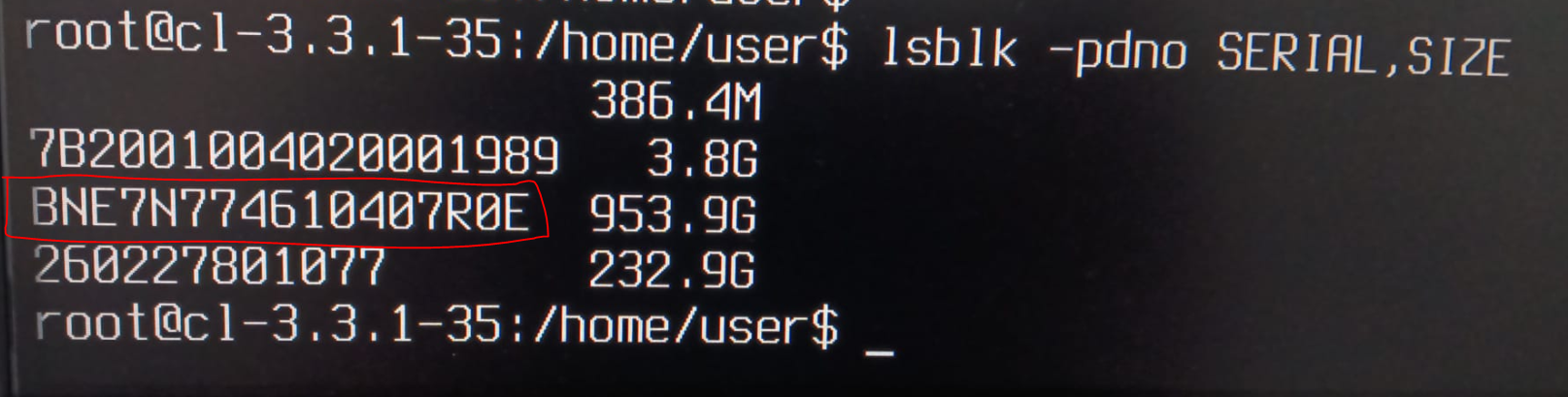

I did a test and used the wrong number in Host Primary Disk and start to clone:
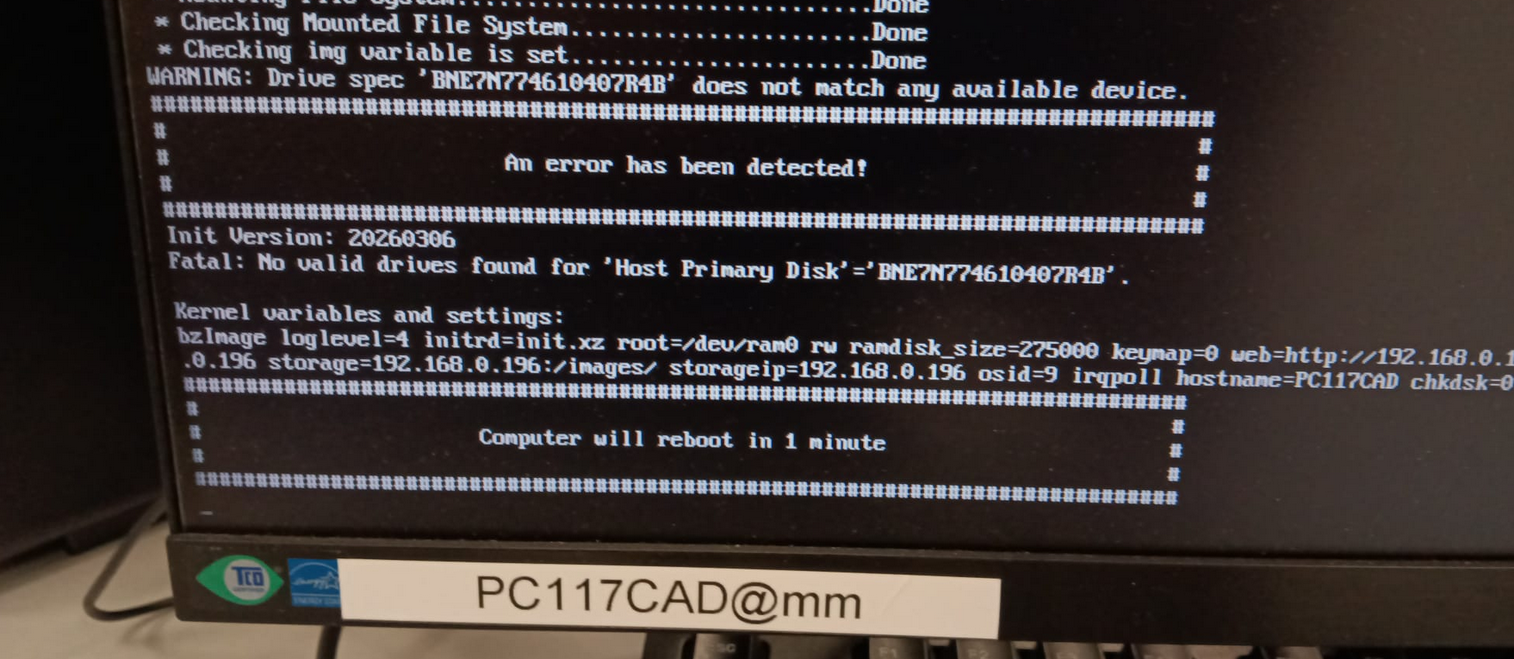
So it seems to work.
-
@Tom-Elliott
Tom Thank you for your great support.